Adding a Swap Space on Ubuntu and Debian
04 Jun 2026, 17:04:05
The Linux kernel manages the server's RAM by dividing it into blocks of a fixed size - memory pages. A swap file (swap space) is disk space where the kernel copies memory pages to free up space in RAM. Swap can be a file or a disk partition. In this article, we will create a swap file, learn how to enable and disable it, configure it to mount automatically at boot, and adjust some kernel settings for more efficient swap management. We will be working on a EuroHoster VPS running Debian 12 as the root user, but these instructions also apply to other systems, such as Ubuntu 22.04/24.04.Why do you need swap space on a server?
When a server runs out of physical memory, for example, due to a sudden spike in load, the kernel attempts to free up memory in various ways (by flushing caches, etc.). If there is still not enough memory, it triggers the OOM Killer mechanism, which terminates one or more memory-intensive processes. One of the simplest ways to avoid this is to add a swap file. In this case, the kernel will place inactive memory pages into the swap area, thereby freeing up part of the RAM for active processes. This is a good solution for handling temporary load spikes, but not for a constant shortage of RAM. The swap file or partition is physically located not on fast RAM chips, but on a regular disk installed in your server. Consequently, memory access speeds in swap are much lower, and working with it creates additional disk load, which generally has a negative impact on system performance and, in the long run, the health of the disk.Checking for swap space
On a server, especially a dedicated server, a swap partition may already have been created during the OS installation. Therefore, before proceeding, it’s a good idea to check whether a swap partition exists. When checking RAM usage, you may have noticed that information about swap usage is already displayed there:free -hIf all the columns in the “Swap” row (which shows the size, usage, and free space of the swap) display zeros, then swap is not enabled on the server:
Also you can check a swap space exists using the utility that manages it:
swapon --showIf you receive an empty response, the swap space is not configured:
Swap Space size
Before creating a swap space, you need to decide on its size. The old rule of thumb: 50% of RAM is long outdated. On a dedicated server, even with 64 GB of RAM, there’s no point in having a 32 GB swap, let alone one with more memory.I recommend using this table as a general guide:
| RAM | SWAP |
| < 2 Gb | 2x RAM |
| 2 - 16 Gb | 2 - 4 Gb |
| > 16 Gb | 4 - 8 Gb |
Creating a source file for swap
By default, many virtual servers are installed without a swap partition. This is because you can increase the amount of RAM with just a couple of clicks at any time, which is much more efficient for your server’s performance. However, if necessary, the easiest solution is to create a swap file, not partition.For example, let’s create a 2 GB swap file using the following command:
fallocate -l 2G /swapfile- fallocate - a utility for allocating space for a file on a file system;
- -l - the size of the allocated space;
- /swapfile - path to the future swap file.

For ext4 and XFS file systems, it is usually sufficient to use fallocate. For the Btrfs and older file system versions, you need to use the dd utility:
dd if=/dev/zero of=/swapfile bs=1M count=2048- dd - a low-level data conversion utility;
- if - data source (/dev/zero - an endless stream of zeros);
- of - output file;
- bs - size of a single block;
- count - number of blocks.
Permissions for the swap file
The swap file contains memory fragments from processes running on the system. This means that, in theory, it is possible to extract confidential data from it. To prevent this, you must set the correct permissions on the file itself:chmod 600 /swapfile600 - permissions that allow only the owner (root user) to read and write:
Creating a swap space
At the moment, we have a simple empty file named /swapfile. To use it as a swap space, you need to prepare it using the following command:mkswap /swapfileThe utility will create a swap data structure and assign a UUID:
Turn on swap space
Everything is ready to enable swap using the command:swapon /swapfileIf everything well, the command will not return any errors. We can view the result using the same utility:
Also using the utility free:

This means that the kernel recognizes the swap space and can use it, but it will only work until the first reboot.
Permanently set the swap space
To ensure that the swap space appears automatically in our system after a reboot, we need to add information about it to the /etc/fstab file.To do this, open the file using the following command:
nano /etc/fstabAdd the following line to the end of the file:/swapfile none swap sw 0 0Save the changes to the file using the Ctrl+O shortcut, then exit using Ctrl+X.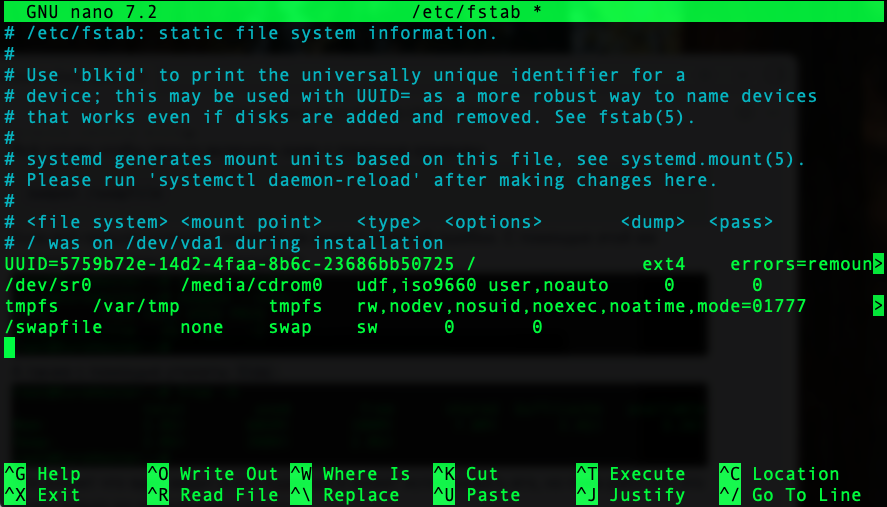
The OS will automatically turn on the swap space at boot time.
Tuning swap
To make more efficient use of the swap space, two kernel parameters are typically adjusted: swappiness and vfs_cache_pressure.swappiness determines the kernel’s preference for swapping out processes’ anonymous memory to swap space rather than freeing up the file cache.
To understand this, imagine what happens when there is a out of RAM. The kernel searches for memory pages that can be freed. The swappiness parameter is responsible for: the page cache and anonymous memory. The first is the contents of files that have been recently used. These can simply be unloaded from memory or written to disk, since the files exist on disk. The second is process memory not associated with files (variables, arrays, etc.). This data must be written to a swap file. The swappiness parameter ranges from 0, when swap should be used as a last resort, to 200 (up to 100 on Linux kernel versions < 5.8), when using the swap file takes priority over clearing the file cache. The default value is 60, a balance between swap and the file cache. For servers, the parameter is typically set to 10:
sysctl vm.swappiness=10vfs_cache_pressure controls the flushing of the VFS Cache (file system cache). It is specified as a percentage and determines how quickly the kernel will flush dentries and inodes cache. The default value is 100 - the kernel will seek a balance between the VFS cache, the swap file, and the file cache. Decreasing this value will allow the file system cache to be retained longer compared to the page cache:sysctl vm.vfs_cache_pressure=50To make these changes permanent, you need to add these settings to the sysctl configuration file. Recent versions of the operating system recommend doing this in separate files located in the /etc/sysctl.d directory:echo 'vm.swappiness=10' | tee /etc/sysctl.d/99-swap.conf
echo 'vm.vfs_cache_pressure=50' | tee -a /etc/sysctl.d/99-swap.confOnce added, the kernel will automatically apply the specified settings at startup.How to clean, disable, or remove swap
To disable swap, you can use this simple command:swapoff -aIt will disable all swap files and partitions found:
After added the swap file details in /etc/fstab, you can use a simplified version of the swapon command to enable the swap space:
swapon -aThe utility will locate and mount all available swap files and partitions:
If you need to clear the swap space, you must restart it:
swapoff -a && swapon -aIf the system is out of RAM, executing this command may take a long time.
To remove the swap space, you must first disable it and delete the swap file using the rm command, after this remove the swap space entry in /etc/fstab if you added it earlier:
swapoff /swapfile && rm /swapfile
Conclusion
Configuring swap takes very little time, but it is one of the simplest steps you can take to ensure greater stability for your server and your project.When configuring swap, keep in mind that the swap file is not a substitute for RAM, and using large amounts of it constantly actually slows down the software and the server as a whole. Having it in the system provides an additional reserve that helps handle temporary spikes in load and reduces the likelihood of the OOM Killer being triggered. In other cases, it makes more sense to increase the amount of RAM, especially if you’re using a VPS, where this can be done very quickly and easily. For example, on our VPS in Bulgaria or the Netherlands, this can be done on the service page itself in a matter of minutes.